
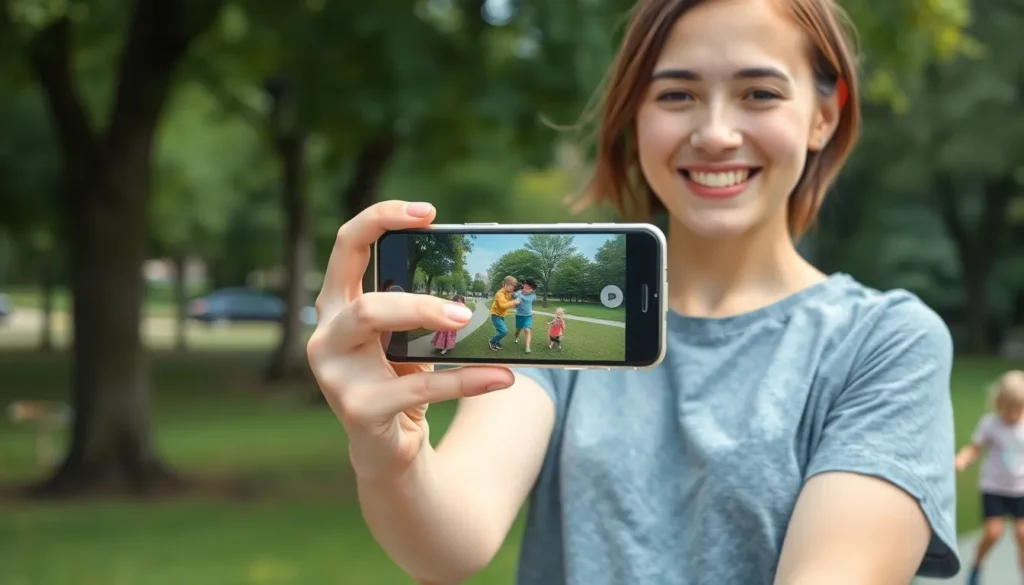
Capturing that perfect moment can feel like a race against time, especially when your kids are doing cartwheels or your dog is chasing its tail. Thankfully, iPhones come equipped with a nifty little feature called Burst Mode. It’s like having a personal photographer who never misses a beat, snapping multiple photos in rapid succession, so you can choose the absolute best shot later.
Understanding Burst Mode
Burst Mode on the iPhone enhances photography by allowing rapid capture of multiple images. This feature is particularly useful for action shots, ensuring users can choose the best frame later.
What Is Burst Mode?
Burst Mode is a camera function that captures a series of photos in quick succession. Users can hold the shutter button to take numerous frames, recording every moment without missing a beat. This mode is especially helpful for subjects with unpredictable movements, like pets or children.
Benefits of Using Burst Mode
Using Burst Mode offers various advantages. First, it increases the likelihood of capturing the perfect expression or action. Additionally, it provides a comprehensive view of a moment, allowing for easy selection of the best shot. Users can also enjoy improved clarity in fast-moving scenes, minimizing the chance of blurriness. Overall, Burst Mode simplifies the process of taking high-quality photographs in dynamic situations.
How to Access Burst Mode on iPhone
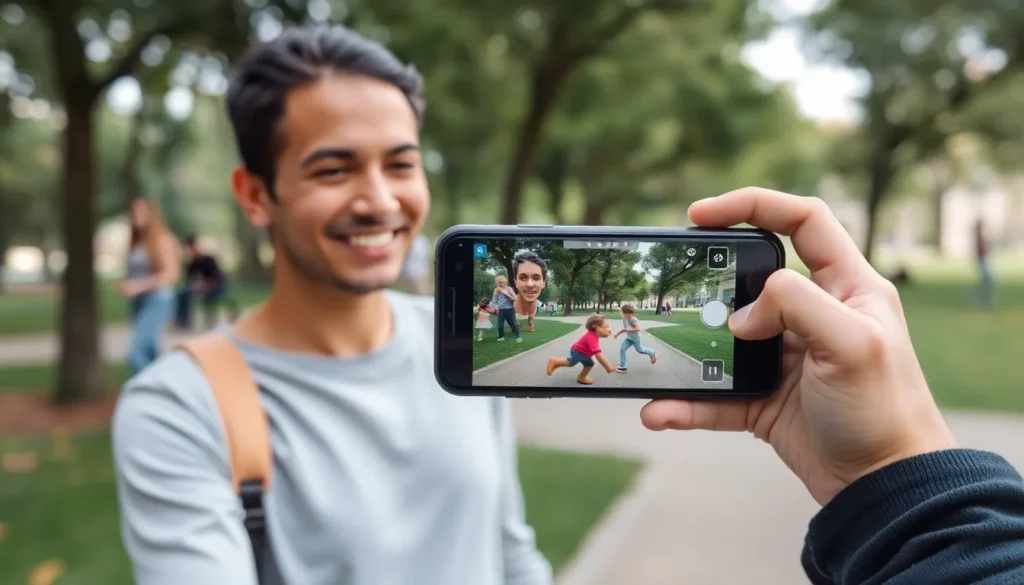
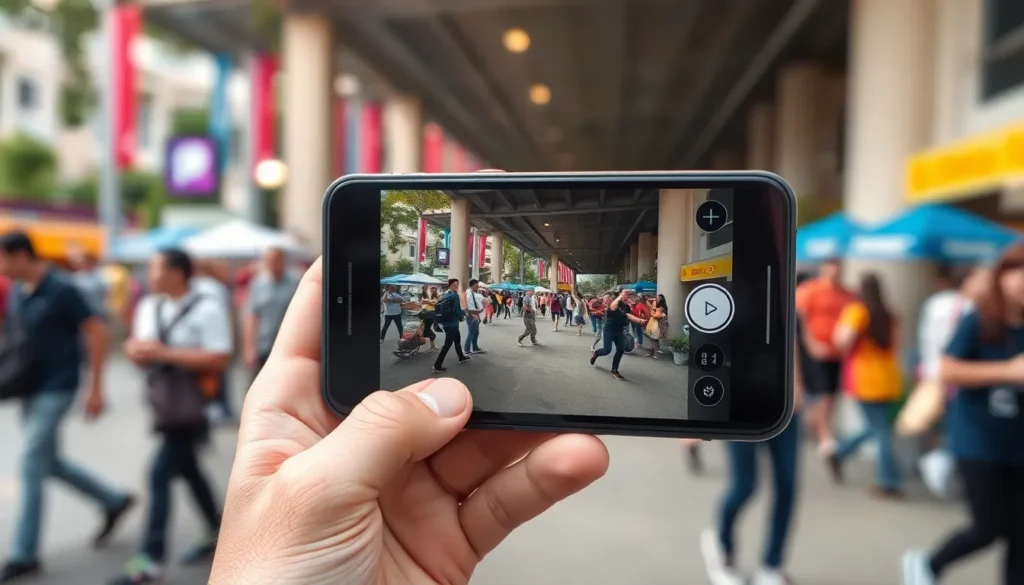
Accessing Burst Mode on an iPhone offers users an excellent way to capture fleeting moments. This feature is integral for photographers needing to record rapid action or ensure perfect timing.
Using the Camera App
Open the Camera app, and you’re ready to engage Burst Mode. Press and hold the shutter button, and the iPhone captures multiple frames sequentially. Users can see the number of photos taken in the lower corner of the screen. Release the button when satisfied with the burst. Reviewing the shots later is straightforward; simply navigate to the Photos app and find the burst collection. Select the best images from the group while keeping others for potential use.
Alternative Methods
For capturing burst images, users can utilize Live Photos as an alternative. Enabling Live Photos allows moments before and after the primary shot to be recorded. Users can press and hold the shutter button while in Live Photo mode for a burst effect. Third-party camera apps also support burst shooting, offering additional features and customization options. Users looking for more control may explore these applications for enhanced photography experiences.
Tips for Using Burst Mode Effectively
Using Burst Mode on the iPhone can create amazing photography opportunities. Following specific strategies helps users make the most of this feature.
Selecting the Best Shots
Choosing the right photos from a burst can feel overwhelming. Start by reviewing the burst collection in the Photos app. Use the “Select” option to highlight favorites among multiple images. Pay attention to facial expressions, movement clarity, and the overall framing of each shot. Consider swiping through the images quickly to identify the best moments intuitively. Users can tap heart icons to mark their preferred pictures for easy access later. Sorting through bursts allows one to enjoy the thrill of capturing action without worrying about making immediate decisions.
Managing Storage Space
Burst mode images can consume significant storage space. Regularly deleting unwanted photos helps maintain ample available storage. Users can navigate to the “Recently Deleted” folder after removing images to free up space. Monitoring iPhone storage in the Settings app keeps track of used and available space. When using Burst Mode, consider limiting the number of shots taken per event. Utilizing cloud storage solutions such as iCloud or third-party services provides additional space options. Regularly organizing photos into albums aids in managing large collections effectively.
Common Issues and Troubleshooting
Burst Mode offers great advantages, but users may occasionally encounter issues. Understanding how to resolve these problems makes capturing perfect moments easier.
Burst Mode Not Working
Burst Mode may not function due to several reasons. First, ensure the Camera app is open in Photo mode. If it’s in Portrait or another mode, Burst may face limitations. Some users experience issues if the storage space on their device is low. Closing background applications helps maximize performance. Further, a quick restart of the iPhone often resolves temporary software glitches. Checking for iOS updates also aids in eliminating bugs that may affect Burst Mode.
Tips for Resolution
Start with checking storage space and clearing out unnecessary apps. Deleting old photos and videos will free up room for new bursts. Updating the iPhone’s software fixes bugs and enhances performance. Restarting the device regularly helps keep the camera functioning optimally. If problems persist, resetting settings can restore defaults and resolve conflicts. Testing the Burst Mode feature with various subjects showcases its benefits while confirming proper functionality. For persistent issues, reaching out to Apple Support provides additional assistance.
Burst Mode on the iPhone is a powerful tool for anyone looking to capture fleeting moments with precision. By allowing users to take multiple shots in quick succession, it ensures that no precious memory goes uncaptured. Whether it’s a child’s joyous leap or a pet’s playful antics, Burst Mode enhances the likelihood of getting that perfect shot.
Users should embrace the convenience of this feature while being mindful of storage management. Regularly reviewing and deleting unwanted images will help maintain optimal storage space. With a little practice and the right techniques, anyone can elevate their photography skills and make the most of the iPhone’s Burst Mode.


