

Ever found yourself in the middle of a call, juggling your phone like a hot potato while trying to multitask? We’ve all been there. Whether you’re cooking dinner or attempting to wrangle the kids, the struggle is real when you need to switch to speaker mode on your iPhone. But fear not! Turning on the speaker during a call is as easy as pie—if pie were a tech-savvy friend giving you the lowdown.
Understanding Speakerphone Functionality
Understanding how speakerphone works on an iPhone enhances call management. This feature allows users to engage in hands-free conversations, providing convenience during tasks.
What Is Speakerphone?
Speakerphone is a function that amplifies the voice of the person on the other end of the line through the phone’s built-in speaker. This feature enables users to hear and transmit sound without holding the phone to their ear. Speakerphone operates by utilizing microphones and speakers that provide clear audio quality, allowing multiple people in the room to participate in the conversation. iPhones come equipped with this technology for seamless communication.
Benefits of Using Speakerphone
Utilizing speakerphone offers multiple advantages. First, it provides hands-free convenience, ideal for multitasking. Second, it allows for group conversations, enabling several people to listen and speak without needing additional devices. Third, the feature enhances call quality by utilizing high-quality speakers and microphones, improving clarity. Lastly, using speakerphone can reduce ear fatigue during prolonged calls, ensuring a more comfortable experience.
Steps to Turn On Speaker on iPhone During Call
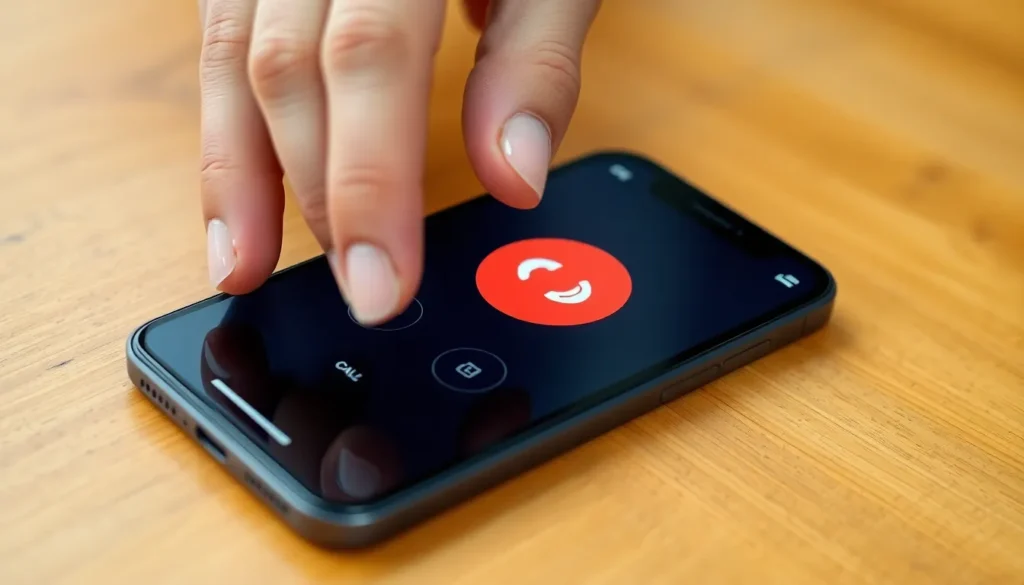
Activating the speakerphone feature on an iPhone during a call is straightforward. Users can rely on their device’s call screen or access specific settings to enhance their experience.
Using the Call Screen
The call screen displays relevant options for managing active calls. To turn on speaker during a call, users should look for the speaker icon, typically located in the lower-right corner. Tapping this icon activates the speaker, allowing hands-free conversation. Sound quality remains steady when using the built-in speaker. Moreover, this feature is beneficial for group discussions or when multitasking.
Accessing Settings for Speakerphone
Settings provide additional options for managing speaker preferences. Under the “Settings” app, users can navigate to “Accessibility,” then select “Touch.” Within the touch settings, users have the option to enable “Call audio routing.” Choosing “Speaker” automatically routes calls to speakerphone, making it simpler to use hands-free features. Adjusting these settings can enhance user experience and allow more seamless interaction during calls.
Troubleshooting Speakerphone Issues
Users may encounter various issues while using the speakerphone feature on their iPhone during calls. Addressing these problems quickly ensures a smoother call experience.
Common Problems
People often face common speakerphone issues affecting call quality. Low volume can impact clarity, causing difficulty in hearing the caller. Background noise might interfere, diminishing the overall sound experience. Sometimes, calls fail to switch to speaker mode due to software bugs or hardware malfunctions. Users may also notice a delay in audio or echoing, detracting from conversations.
Solutions to Fix Inconsistent Speakerphone Performance
Taking specific steps can resolve inconsistent speakerphone performance on an iPhone. First, users should check the mute button on the call screen to ensure it’s off. Restarting the device can eliminate minor software glitches that affect functionality. Adjusting the volume during a call helps improve sound levels and clarity. If issues persist, users should inspect their iPhone’s microphone or clean the speaker grilles. Updating to the latest iOS version can also fix bugs that impair speakerphone performance.
Alternative Options for Hands-Free Calling
Various options exist for hands-free calling on an iPhone, enhancing convenience during calls. Users can explore additional features such as wireless earbuds or third-party speakerphone apps for a better experience.
Using Wireless Earbuds
Wireless earbuds provide a seamless hands-free calling option. Users can pair earbuds with their iPhones via Bluetooth, ensuring easy connection. During a call, tapping the earbud can answer calls or end them without needing to touch the phone. Sound quality remains strong, making conversations clear. Earbuds also allow mobility while chatting, which is perfect for multitasking activities like cooking or cleaning.
Third-Party Speakerphone Apps
Third-party speakerphone apps can enrich the voice calling experience. Many apps offer unique features tailored for more efficient call management. Users can find options that include call recording, noise cancellation, and enhanced audio settings. Installing such an app may enhance quality during group discussions. Some popular apps allow users to customize settings, thereby improving overall usability when using speakerphone.
Turning on the speakerphone during a call on an iPhone is a simple yet effective way to enhance communication. Whether juggling tasks or engaging in group discussions, this feature provides the convenience and clarity needed for hands-free conversations. Users can easily activate the speaker mode or explore additional options like wireless earbuds for an even more flexible experience.
By understanding how to utilize the speakerphone function and addressing potential issues, iPhone users can ensure a smoother and more enjoyable calling experience. Embracing these tools not only improves call quality but also allows for multitasking without missing important conversations.


